
Free AI Object Remover No Sign Up
Remove unwanted objects from photos fast, then check the edges before you trust the final download.
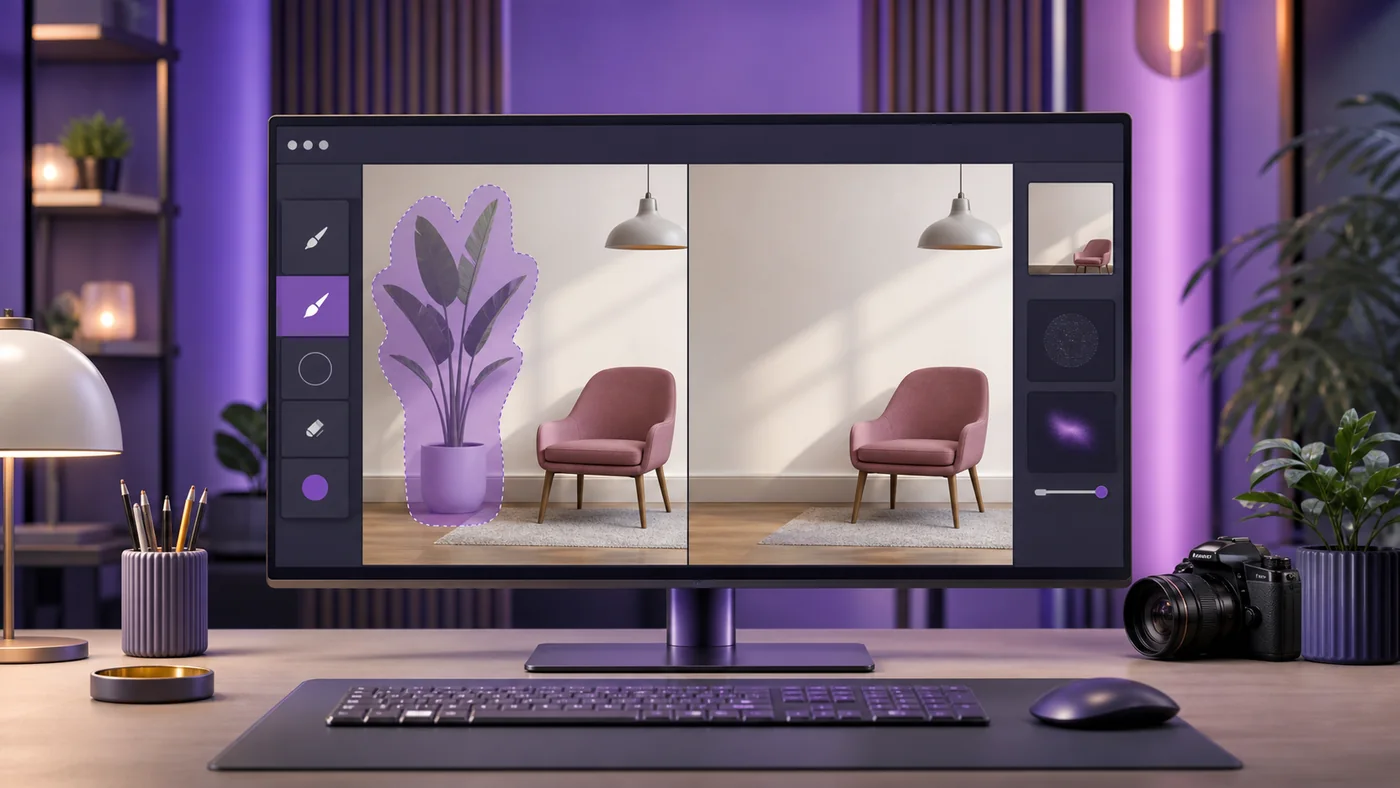
The search intent behind AI object remover no sign up is clear: you have one photo with a distracting object, and you do not want to create another account just to remove it.
I tested this category with practical images: a product photo with a stray prop, a room photo with a plant too close to the subject, and a social image with a small background distraction.
The best AI object remover no sign up workflow is not the one with the fanciest editor. It is the one that removes the distraction without inventing a new problem.
Free AI Object Remover Tools Compared
Most object removers work well on small distractions and simple backgrounds. They struggle when the removed object overlaps a face, product label, hand, reflection, or repeating pattern.
| Tool | Best for | Account friction | Main catch |
|---|---|---|---|
| Cleanup.pictures | Quick brush removal on simple photos | Low-friction first test | High-resolution output may be limited |
| Magic Studio | Casual edits and social images | Fast browser workflow | Complex backgrounds need close inspection |
| Pixelcut | Product and creator photos | Easy first test | Batch work can push account prompts |
| Fotor | Marketing and lifestyle images | Simple upload path | Final export rules can vary |
| Picsart | Creative social edits | Fast start, more tools after login | Generated fill can look stylized |
1. Cleanup.pictures for Fast AI Object Remover No Sign Up Tests
Best first test
Cleanup.pictures is the first tool I would try when the photo has a small unwanted object and a fairly predictable background.
In my workflow, it was strongest on simple removals: a cable on a desk, a stain on a wall, or a small object sitting on a table. The brush workflow makes it easy to control exactly what you want removed.
The catch is resolution. If the photo is for a product page, ad, or homepage hero, check the downloaded size before you build the whole workflow around it.
2. Magic Studio Magic Eraser for Casual Photo Cleanup
Magic Studio Magic Eraser is useful when you want a quick cleanup without learning a full photo editor.
I like it for social images, profile photos, and blog graphics where the removed area does not carry important detail. It is less ideal when the object touches hair, hands, text, or product packaging.
Common pitfall: do not brush too wide on the first pass. A tighter selection usually gives the model less room to invent a strange patch.
3. Pixelcut Object Remover for Ecommerce and Creator Images
Pixelcut Object Remover fits the same kind of user who edits product photos, thumbnails, and marketplace images.
When I tried this workflow, I judged the result by the shadow and texture after removal. If the floor, table, or wall texture changes too much, the photo starts to look edited even if the object is gone.
For ecommerce, compare the cleaned image against the original product. Do not let AI remove a real part of the item or change its shape.
4. Fotor AI Object Remover for Marketing Photos
Fotor AI Object Remover is a good fit when the image is already part of a broader marketing edit.
It works best when the object sits in a background area that can be rebuilt naturally: sky, plain walls, grass, water, simple floors, or soft studio backdrops.
My practical rule: if the object is larger than 20 percent of the image, object removal becomes image reconstruction. At that point, expect more artifacts.
5. Picsart Remove Object for Creative Social Edits
Picsart Remove Object can work well for creator graphics, social posts, and casual edits where a slightly polished look is acceptable.
I would not use it as my first choice for precise product photography. It is better for removing background clutter than for cleaning technical images with labels, measurements, or straight lines.
If you already edit in Picsart, it is convenient. If you only need one clean removal, Cleanup.pictures or Magic Studio may be faster.
Object Removal Pitfalls With AI Photo Editors
AI object removal is a guess, not a forensic edit. The tool fills the missing area based on context, so the result can be plausible and still inaccurate.
- Check straight lines after removing objects from walls, floors, packaging, and architecture.
- Zoom into hair, fingers, glass, labels, and reflections before publishing.
- Keep the original image so you can roll back if the edit looks fake later.
- Avoid using object removal to hide required product details or disclosure marks.
An uncommon but useful tip: run two small removals instead of one huge brush stroke. Smaller passes usually preserve background texture better.
Best Use Cases for Free AI Object Remover Tools
The cleanest use cases are small, background-level fixes. These tools are not magic replacements for a careful reshoot, but they can save a near-finished image.
- Remove a cable, cup, stain, or small prop from a product photo.
- Clean a blog image before turning it into a featured image.
- Remove background clutter from a social post.
- Fix one distraction after using an AI image extender or image crop tool.
If the issue is the whole background, use a background remover instead. If the image is too small, fix resolution before you clean details.
FAQ: AI Object Remover No Sign Up
What is an AI object remover?
An AI object remover lets you brush over an unwanted part of a photo, then fills the missing area using surrounding pixels and generated detail.
Can I remove objects without signing up?
Some tools allow a quick test without an account, but download size, repeat use, and batch editing can trigger signup or credit limits.
Which object remover should I try first?
Try Cleanup.pictures for a fast brush workflow, Magic Studio for casual edits, and Pixelcut for product or creator images.
Is AI object removal safe for product photos?
It can be safe for background clutter, but do not remove or alter real product details. Always inspect the final image at full size.
Next Step: Test One Small Removal First
Pick a photo with one small distraction and test Cleanup.pictures or Magic Studio before editing a whole batch. For more practical tests, bookmark AIListPrime AI Tool Reviews.