
Free AI Background Remover No Sign Up
No email, no dashboard, no account detour. These are the fast background-removal options I would test first.
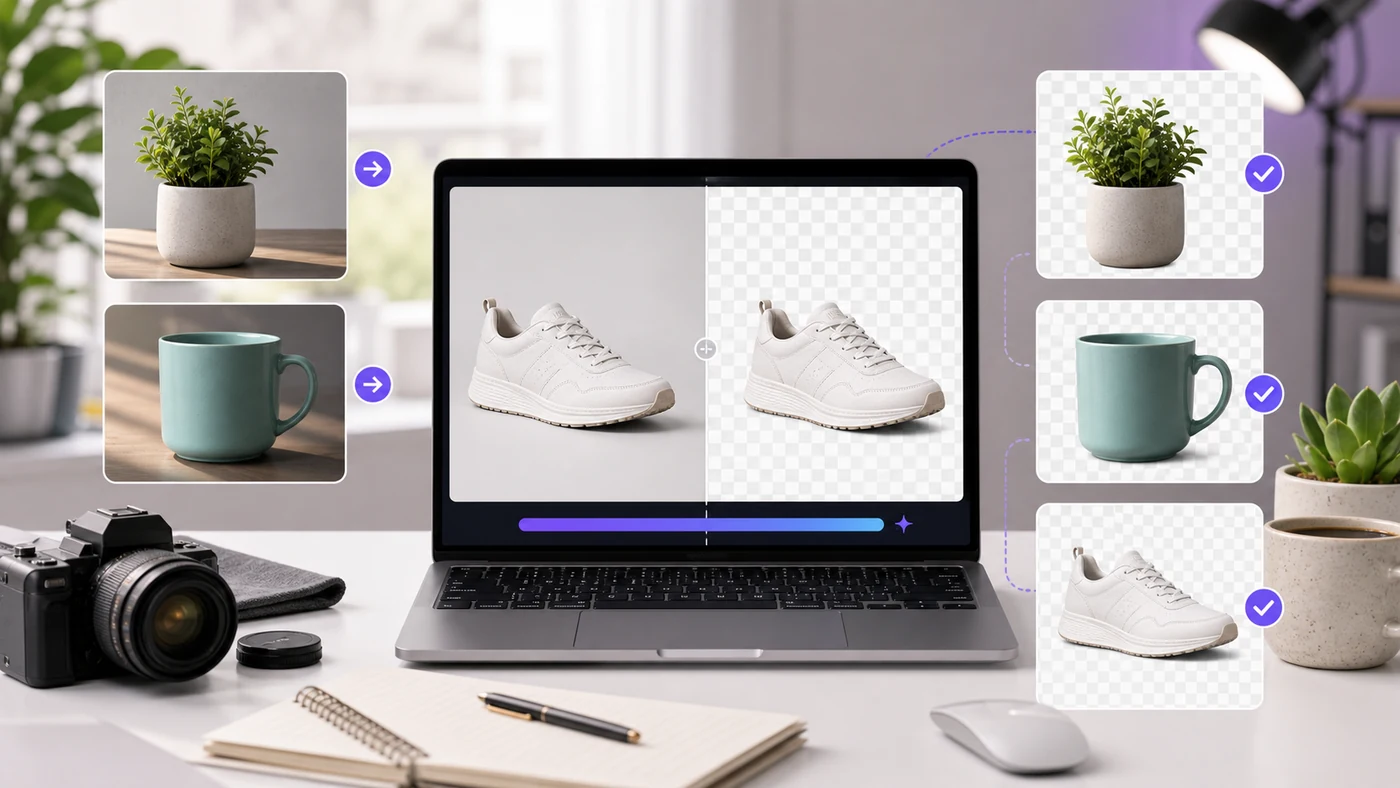
The search intent behind AI background remover no sign up is simple: you have one image, you need the background gone, and you do not want to create another account for a five-second job.
I tested this like a real user would: open the page, upload a simple image, check whether the cutout works, and look for the moment the tool asks for login. Limits change often, so treat this as a July 2026 field guide rather than a permanent promise.
The best AI background remover no sign up workflow is the one that finishes before you start comparing pricing pages.
Quick Comparison: No Sign Up Background Removers
| Tool | Account friction | Best for | Main catch |
|---|---|---|---|
| remove.bg | Basic test works fast | Portraits, products, clean cutouts | HD and API work can require credits |
| Erase.bg | Low friction | Simple one-off product cutouts | Limits can vary by region/session |
| Adobe Express | Easy start, more features after sign-in | Cutout plus social design edits | Full editing flow may ask for account |
| PhotoRoom | Quick for product photos | Ecommerce backgrounds and shadows | Batch and pro exports may need signup |
| Pixelcut | Simple web workflow | Product image cleanup | Advanced tools sit behind account prompts |
1. remove.bg – Best AI Background Remover No Sign Up for Clean Cutouts
Best first test
remove.bg is still the tool I would try first when the image has a clear subject. It handles portraits, product photos, pets, and basic objects better than many all-in-one editors.
In my test workflow, the advantage was speed. Upload, wait a few seconds, preview the transparent background, then download the basic result. For a blog image, marketplace draft, or quick thumbnail, that is often enough.
The catch is resolution. If you need a large transparent PNG for print, ads, or a product catalog, check the download size before you build the whole workflow around it.
2. Erase.bg – Best Free Background Remover No Account for Simple Images
Erase.bg is useful when you want a minimal interface and a fast product cutout. It works best on clean images where the subject does not blend into the background.
I like it for quick ecommerce cleanup: a mug on a desk, a shoe on a table, or a profile object against a plain wall. Hair, fur, glass, and transparent packaging still need a closer check.
Common pitfall: do not assume the first cutout is final. Zoom in around the edge, especially where white objects meet light gray backgrounds.
3. Adobe Express Background Remover – Best When You Also Need Design Edits
Adobe Express is useful when background removal is only step one. After the cutout, you may want a social post, flyer, banner, or product card.
The reason to use it is not pure speed. It is the design workflow around the cutout. If you already use Adobe tools, this can feel more natural than downloading a transparent PNG and opening another editor.
The trade-off is account friction. The quick tool may let you start fast, but saving projects, advanced edits, or repeated use can move you toward sign-in.
4. PhotoRoom – Best No Signup Background Remover for Product Photos
PhotoRoom is strongest when you care about ecommerce presentation. It is not just removing the background; it can help product photos look like they belong in a store.
For a one-off test, I would use it on a product image with a simple shape, then compare the shadow and edge against remove.bg. PhotoRoom often feels more store-oriented, while remove.bg feels more general-purpose.
If you sell products, keep a plain original image too. A perfect cutout is not a substitute for showing real texture, size, and scale.
5. Pixelcut – Best Background Remover for Quick Creator Workflows
Pixelcut fits creators who want a quick visual asset, not a technical editing workflow. It is good for social graphics, profile assets, and basic product cutouts.
The tool category is crowded, so I judge Pixelcut by how little cleanup I need after the first export. If the subject edge has halos, I switch tools instead of fighting it.
My practical rule: if an image is for a paid ad or product listing, test at least two background removers and choose the cleaner edge, not the nicer interface.
Watch Outs Before You Download a Free Background Remover Result
Even an AI background remover no sign up tool can hide limits after the preview step, so inspect the actual download before you commit.
- HD download trap: the cutout may be free, but high-resolution export may need signup or credits.
- Edge halos: white products on light backgrounds often leave gray outlines.
- Commercial terms: free web tools can have different rules for business use.
- Batch limits: one image may work without an account, but 20 images usually triggers limits.
- Privacy: avoid uploading sensitive client images to random tools.
Frequently Asked Questions
What is the best AI background remover no sign up?
For a quick browser test, remove.bg and Erase.bg are usually the fastest starting points. Check current limits before batch work.
Can I remove image backgrounds for free without an account?
Yes, several tools let you remove at least one background without creating an account, but HD downloads and batch processing often require signup.
Do free background removers add watermarks?
Most background removers do not watermark the basic cutout, but they may limit resolution or advanced edits.
Can I use no-signup background removers for ecommerce photos?
Yes for drafts and simple product images, but check edge quality, shadow control, and each tool’s commercial terms.
Next Step
Try remove.bg and Erase.bg on the same image, then compare the edge at 200% zoom. If the cutout is for a store or ad, also test PhotoRoom before publishing.
For the broader generator list, read Best AI Image Generator Free No Sign Up.