
Workflow comparison
Descript vs CapCut: A Podcast Clip Workflow
Build an approved podcast master and three vertical derivatives without losing a correction, a reaction or a meaningful pause.
Descript vs CapCut: start with the editing task
This is an editorial workflow comparison based on official documentation checked October 9, 2026. No paid side-by-side trial, measured speed advantage or tested winner is reported. The podcast and timecodes below are fictional planning examples.
A podcast brief you can reproduce
Illustrative input: a 30-minute, two-speaker recording with isolated audio tracks. The guest corrects a product name, the host laughs during an answer, and a deliberate pause sets up a joke. The delivery target is one approved master plus three portrait clips.
- Protect the source. Duplicate the project, retain the original media and identify each speaker track.
- Review the words. Check names, figures and later corrections against the audio before changing the story.
- Approve the master. Remove only agreed material; audition every edited boundary and preserve intentional reactions.
- Select complete excerpts. Give each clip one point and retain any setup needed to understand it.
- Finish each derivative. Correct caption timing, frame the active speaker and keep text clear of destination controls.
- Export and check. Play each file with sound and muted; compare it with the approved master.
- Archive the handoff. Save the master, caption text, clip ranges and approval record outside the editor.
Measure story-review time and visual-finishing time separately in your pilot. Do not claim that a faster template preview proves a faster approved podcast workflow.
Documented workflow differences
| Task | Descript route | CapCut route | Acceptance check |
|---|---|---|---|
| Dialogue editing | Words are linked to underlying media | Review the available timeline and editing controls on your device | Nothing essential disappears at a cut |
| Caption correction | Correct transcript text without assuming audio is repaired | Edit generated caption text and timing | Captions match the final audio |
| Visual treatment | Scenes and caption styles in the project | Available captions, styling and timeline tools | The frame remains understandable on a phone |
| Purchasing | Media-hour and AI-credit allowances | Account, platform and regional quote | The required export is included |
These routes describe available controls, not measured quality or speed. In particular, CapCut’s capabilities differ across web, desktop and mobile; a limitation observed on one route cannot be generalized to all three.
Descript: media editing versus transcript correction
Descript’s Edit like a doc documentation explains that deleting script text removes the linked media from the composition. Transcript correction is a different action: fixing a misspelled name does not change what the guest actually said.
For the fictional name correction, use the later accurate recording or retain the correction with its context. Do not replace a spoken mistake with corrected subtitles while leaving contradictory audio. Use reversible edits and listen to their boundaries; non-destructive editing does not guarantee a natural cut.
CapCut: proof the specific caption workflow
CapCut’s official caption instructions describe generation and manual correction on web, desktop and mobile. Desktop uses Captions → Auto Captions, with audio source and language selection. Edit timing and text after generation.
Speaker detection and subtitle-file export may depend on region, version and platform. Before committing the series, reproduce the exact handoff on the team’s device. Keep one reviewed caption text as the reference so a late wording change does not diverge across styled variants.
Cross-talk, a later correction and a deliberate pause
Fictional cut map: at 04:12 the guest says “Atlas Lite”; at 04:16 they correct it to “Atlas Pro.” At 08:30 the host laughs over the guest’s final word. At 12:04 a two-second pause makes the next sentence a joke rather than a claim.
- Include the correction or select the accurate statement; do not relabel contradictory speech.
- If tracks are isolated, inspect both before deleting one speaker’s text. With mixed audio, recognize that removing a word may also remove the reaction.
- Mark the intentional pause for retention before bulk silence or filler cleanup.
These are editorial decisions for the original performance. AI-generated replacement speech requires appropriate permission and review; it is not a default remedy for inconvenient conversation.
Price the master and derivatives separately
Planning arithmetic: four 30-minute recordings total two source hours. Three approved clips from each would mean twelve derivatives. Count the imported or recorded media and AI operations using your actual account; final clip duration is not a substitute for source processing.
Descript separates media processing from AI-feature use. CapCut’s required features and paid assets need checking on the actual platform. A second subscription adds both an invoice and a handoff: include export/import, caption proofreading and revision time when estimating total cost.
Use monthly subscription costs + extra usage + review labor + handoff labor, then divide by approved episodes or clips. Keep episode economics separate from clip economics so unused AI allowance or rejected derivatives cannot look like savings.
Five delivery checks
- Meaning: corrections, speaker attribution, setup and qualifying words survive every cut.
- Sound: no clipped syllable, missing reaction or unintended silence at the approved boundary.
- Captions: names, numbers, punctuation and timing match the final export, not an earlier transcript.
- Picture: speaker framing and text remain readable when destination controls appear.
- Handoff: all three clips have a source range, a matching master version and an approval record.
A clip passes after the rendered file is reviewed. A clean transcript alone does not prove audio continuity or visual quality.
Current Descript allowances and CapCut checkout
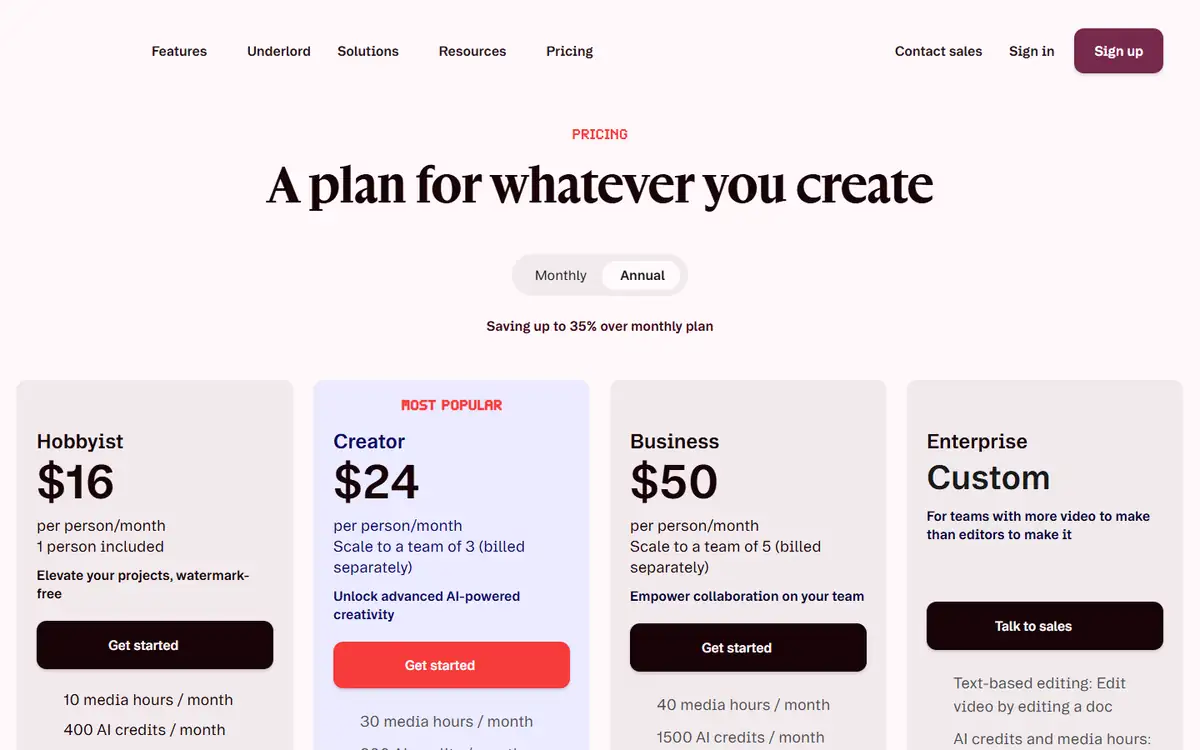
| Descript plan | Monthly billing | Annual equivalent / full year | Monthly allowance |
|---|---|---|---|
| Hobbyist | $24 per person | $16 / $192 | 10 media hours; 400 AI credits |
| Creator | $35 per person | $24 / $288 | 30 media hours; 800 AI credits |
Values come from Descript’s current pricing page, checked October 9, 2026. Hobbyist lists watermark-free 1080p; Creator lists 4K. Free lists one media hour per month and 100 one-time AI credits. Annual equivalents are not monthly invoices; the full-year totals above are arithmetic before applicable taxes. Additional editors are billed separately.
Media hours include imported or recorded media, even when it is not transcribed. AI credits meter AI tools; current allowances should not be renamed legacy “transcription hours” or “AI actions.”
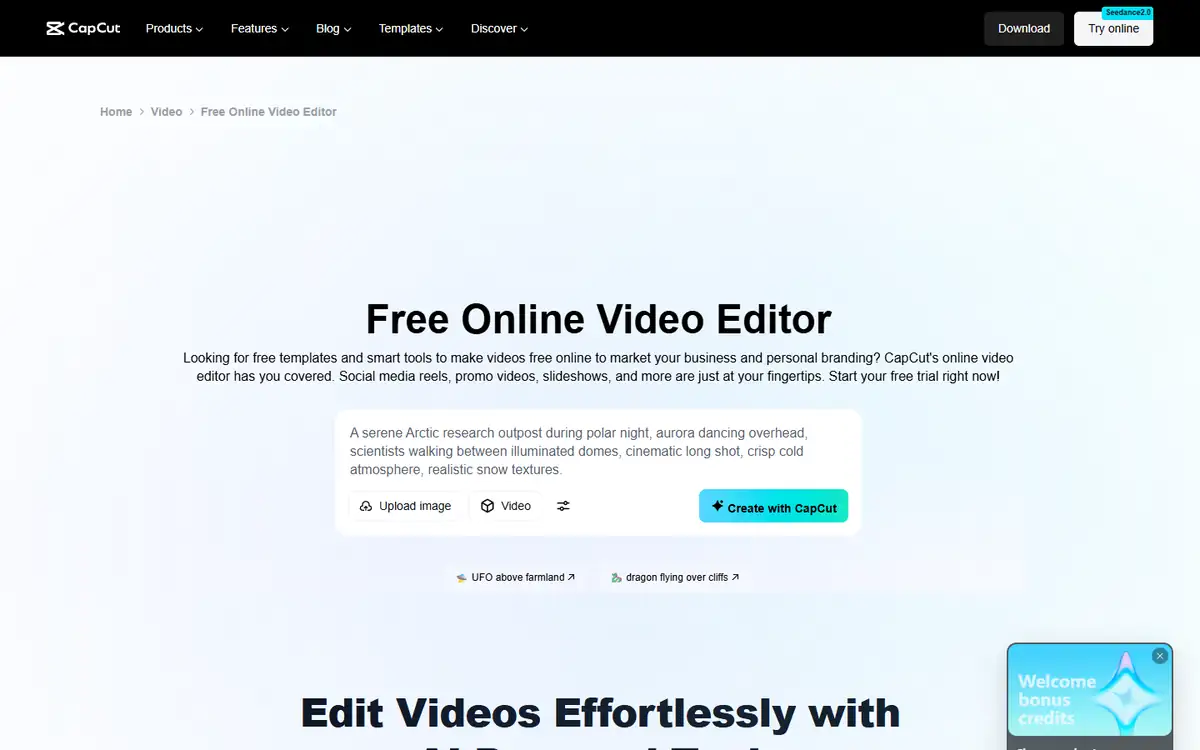
CapCut’s current pricing help says Pro prices vary by region, device and promotions. Check Upgrade on web, the subscription control on desktop, or Join CapCut Pro on mobile. Save the displayed currency, renewal amount, billing term and required-feature access before purchasing. No universal CapCut price is asserted here.
Guest permission and media rights
Confirm that the recording, guest agreement and third-party music or visuals permit the intended derivatives. Remove private pre-roll and post-roll before upload. Obtain appropriate permission before voice cloning or generated replacement speech.
Use the vendors’ current policies and your organizational requirements to assess cloud copies, retention and access controls. This article does not certify a universal deletion deadline or license for every CapCut template or soundtrack. Keep releases and source files independently of either editing account.
Make a revision possible after the handoff
Archive the approved master, original tracks, reviewed transcript, caption text and clip in/out points. Export caption files in the required format if your platform and plan support it. Document fonts, assets and licensing alongside the media.
Before moving to a second editor, render one sample and check audio synchronization, caption timing and framing. Do not assume a final video transfers editable text, effects or comments. The receiving editor should be able to reproduce a factual revision from the source archive.
Who should pilot each tool?
Consider Descript
Your master still needs substantial dialogue review, a transcript-led approval process or edits that reviewers want to discuss by wording.
Consider CapCut
You already have an approved short excerpt and need the available visual controls on a known device, with a verified export and subscription route.
Descript’s September 17 release redesigned caption presets and added text animations. Its own finishing tools may be sufficient for a restrained clip style. Try them before paying for a second tool; a new preset is not evidence of a quality win.
Choose a complete, reversible workflow
Start with the tool that addresses the current bottleneck. For dialogue-heavy master review, pilot Descript. For an already approved clip, pilot CapCut’s required visual treatment and export. Use both only when the saved labor exceeds the second subscription and handoff costs you actually observe.
Run the name-correction, cross-talk and pause cases above before approving bulk cleanup. Consult the AI tool comparisons hub for related decisions. This recommendation does not declare a tested performance winner.
Descript vs CapCut FAQ
Does correcting a transcript fix the spoken words?
No. Transcript correction changes text. To correct the recorded meaning, use an approved accurate take, preserve the speaker’s correction or obtain a new recording.
Can Descript finish the clips without CapCut?
It has caption styles and scenes, including recent caption updates. Try the style your channel needs before adding another subscription.
Is CapCut Pro the same price everywhere?
No universal price is established by its current help. Confirm the account’s device, region, billing term and renewal quote.
Should the same caption file be reused after an edit?
Only after checking it against the new audio. A story revision can shift timing or wording; repeat the export review.
Next step
Use an approved two-minute sample containing a correction and overlapping speakers. Produce one reversible story edit and one finished portrait clip, then record actual errors, repairs, export limits and total labor before buying an annual plan.
Sources and review scope
Official sources reviewed October 9, 2026. Vendor documentation establishes listed access and limits; workflow recommendations and examples are editorial. No purchase, production upload, timed export test or engagement study was performed.